Interactive
v0.4.0Click, type, and navigate shared tabs. Use voice commands, or connect your OpenAI or OpenRouter key for AI browsing.
Download InteractiveZIP · 7.02 MB
Bring up to three Chrome tabs into VR and browse by voice.
v0.4.0 · Early access · Desktop Chrome + PC-connected headset
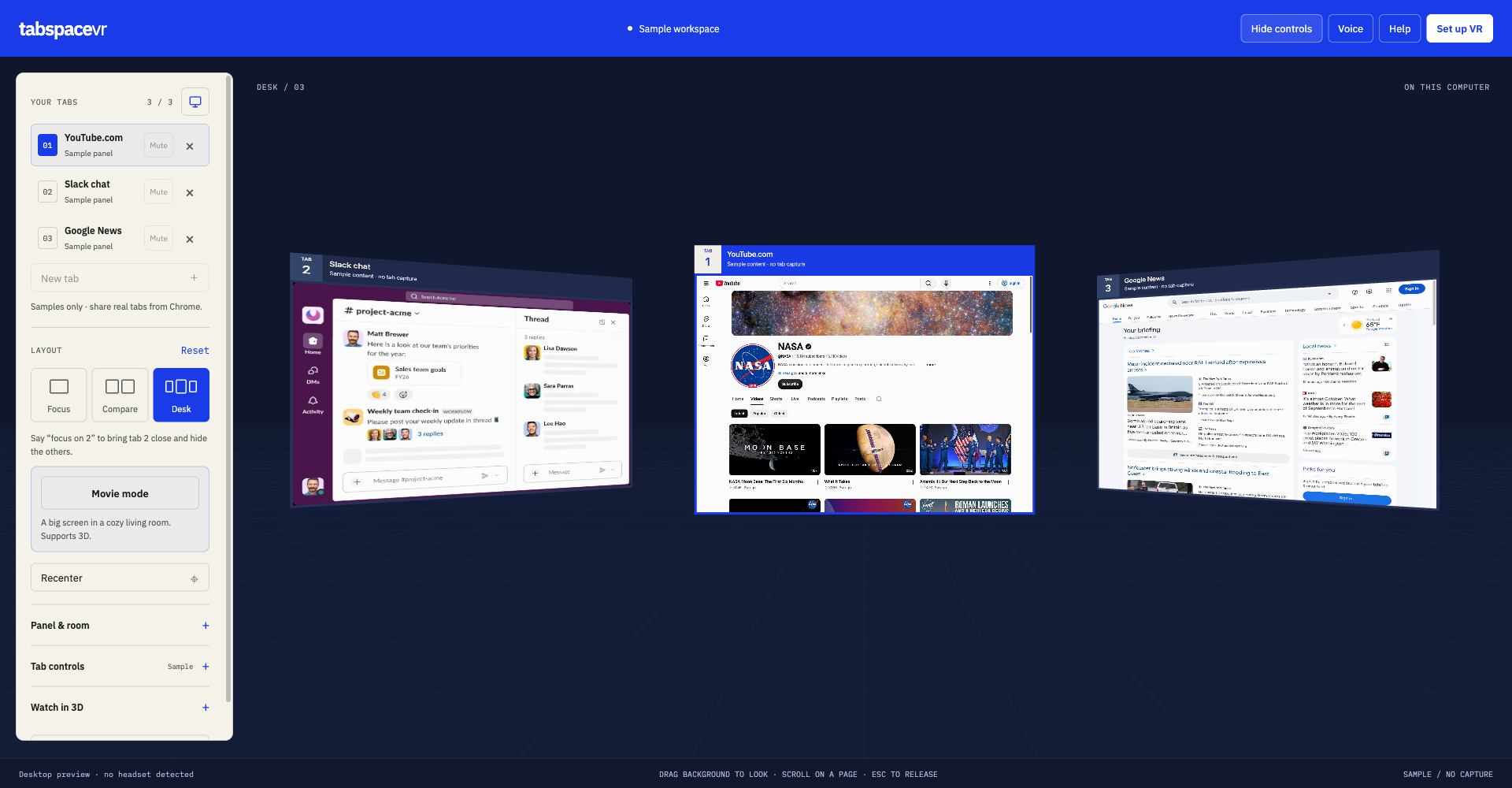
Share pages already open in Chrome, with your existing logins and audio.
Focus on one tab, compare pages side by side, or use Desk layout. Adjust panel size and distance.
Open a website, switch tabs, scroll, or control playback. Connect an AI assistant for requests such as “Find a video about space.”
Install the extension from a ZIP using Chrome’s Developer mode.
You can try desktop preview without a headset. Standalone headset use is not supported. Physical headset testing is pending.
To install, open this page on the computer connected to your headset.
Click, type, and navigate shared tabs. Use voice commands, or connect your OpenAI or OpenRouter key for AI browsing.
Download InteractiveZIP · 7.02 MB
Live tabs, audio, and layout commands, without page clicking, typing, or debugger permission.
Download View Only v0.4.0 · ZIP · 7.02 MBInstall one edition. Not yet in the Chrome Web Store; updates are manual. File checksums ↗
Keep the extracted tabspace-vr or tabspace-vr-view-only folder somewhere permanent. Chrome reads the extension from this folder.
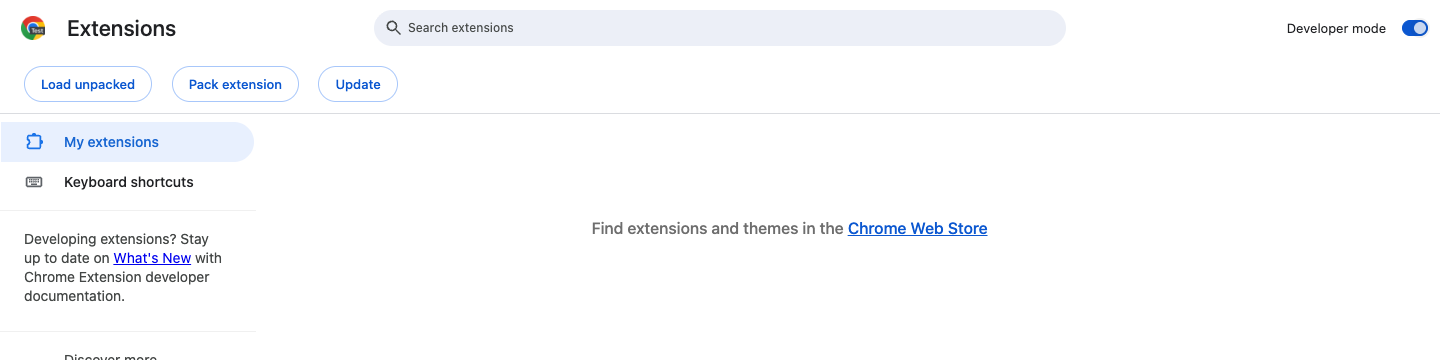
Open this address in Chrome and turn on Developer mode at the top right.
chrome://extensionsClick Load unpacked and select the extracted folder containing manifest.json. Pin TabSpace from Chrome’s extensions menu.
Open a webpage, click TabSpace, and choose Send this tab to VR. Start your headset’s PC connection and OpenXR runtime, then choose Enter VR in the workspace.
No Enter VR button? Start your headset software, then choose Set up VR → Check headset again. Chrome must support WebXR with your headset and runtime.
Open Voice in the workspace and choose a mode before entering VR. The microphone stays off until you start listening.
Tabspace, open a new tab at youtube.com.
Share ordinary websites through the TabSpace toolbar. Incognito tabs, internal Chrome pages, local files, and Chrome Web Store pages are excluded. Protected video may not display.
A shared tab stays shared as you navigate. New tabs you ask TabSpace to create are also shared; other tabs need your approval through the toolbar. File pickers, passkeys, and browser dialogs may need desktop input.
Tab video and audio streams stay on your computer. With Allow page access enabled, AI requests send screenshots, page text, titles, URLs, and conversation context directly to your selected provider.
Local speech recognition stays on your computer. Browser speech may send audio to Chrome’s speech provider. GPT Live sends microphone audio to OpenAI.
Your API key is used only by the extension to connect to your provider. It is kept for the browser session unless you select Remember on this computer, which saves it in local Chrome storage. Saved keys are not synced or stored in an encrypted vault. Use Disconnect & forget key to remove it.
Yes. Under Panel & room, enable Desktop preview in VR for a view at up to 30 fps. It is off by default; desktop controls remain available either way.
Smooth targets 60 fps and Fast targets 90 fps. Actual capture depends on Chrome, the page, your display, and your GPU. Tabs opened from the workspace are capped at 720p / 30 fps; share through Chrome’s toolbar for higher capture targets.
Choose Tab controls → In Chrome and keep the source window open. In the TabSpace toolbar popup, choose Share settings → Restart sharing to start a fresh capture.
Stop sharing, download the latest ZIP for your edition, and replace the contents of the installed folder. Keep its location unchanged. At chrome://extensions, click reload on the TabSpace card, then reopen the workspace and share your tabs again.
Select Stop all sharing in the workspace, or close the workspace. Your original tabs stay open. The “Close tab” command closes the Chrome tab itself.
To uninstall, open chrome://extensions and choose Remove on the TabSpace card. You can then delete the extracted folder.